
Setting the Base Coordinates in rtkbase
- Go back to your interface http://basegnss.local or the IP address of your Raspberry Pi.
- Go to the tab SETTINGS > Main Service > Base Coordinates and change the position to the one calculated previously. Example:
47.0600276632 -1.3504949994 84.9147
Be careful to use the RGF93 coordinates shown at the bottom of the text, not the ITRF2014 or ETRS89 coordinates shown above.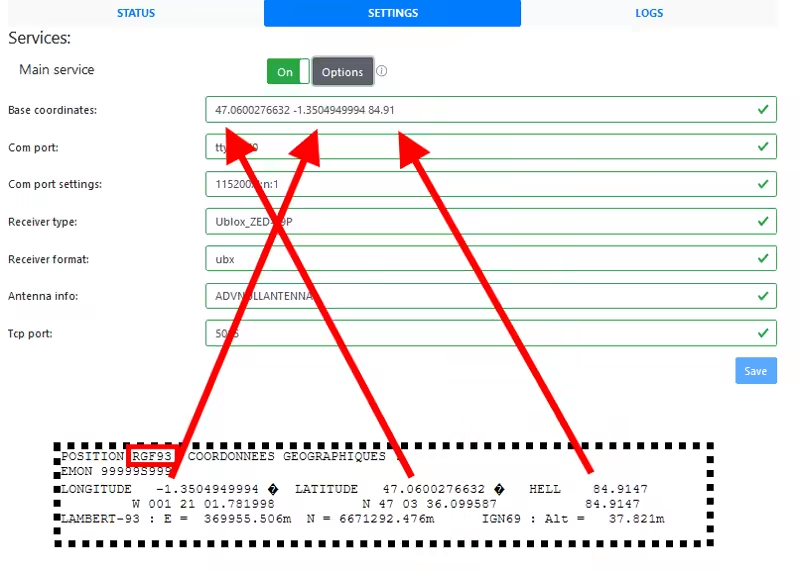
Once you have saved this parameter by clicking the Save button, the exact position will be represented by the target visible on the map (Tab STATUS).
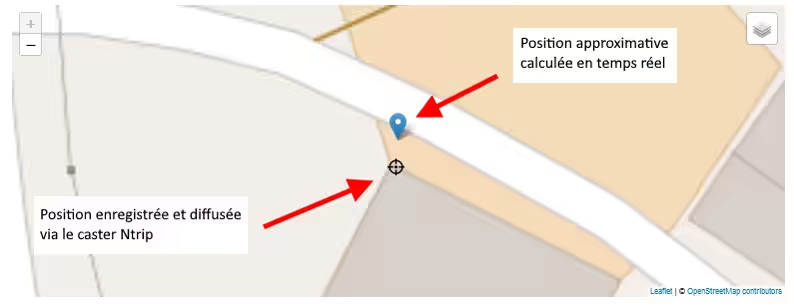
If you notice that the target position is completely incorrect, check that you have not swapped the latitude and longitude, or left a '-' in front of one of the coordinates. A difference of a few meters between the two positions is normal.
Verify that you have enabled the Ntrip service and that its options are correctly configured. If you make a modification, do not forget to click Save.
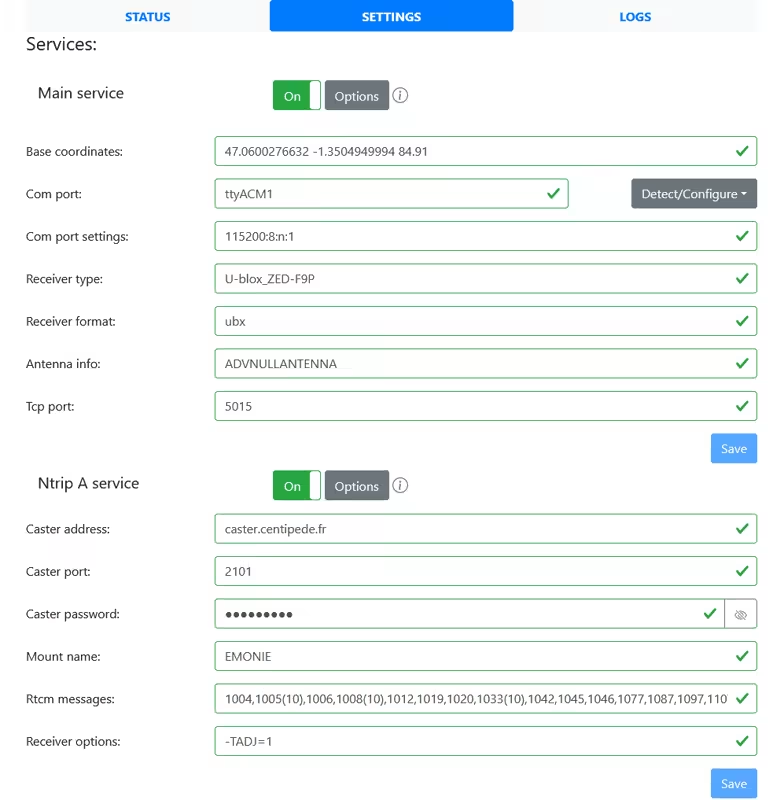
Now, you can disable the File service, unless you need it for post-processing.
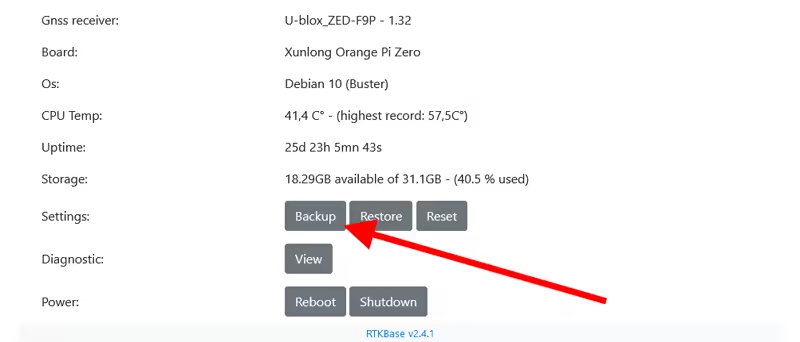
This is also a good time to create a backup of your base settings so you can easily restore them in case of a reset. To do this, at the bottom of the SETTINGS tab click the Backup button, and keep the downloaded file.
It's almost finished: Now declare your Base on the Centipede-RTK Network