
Software configuration
Connection
To connect to the RTKBase web page, enter the address http://basegnss.local in a web browser. If it doesn't work, you can use the Find_rtkbase application, which will try to detect the base and allow you to open its interface by clicking the "Open" button. (requirement: RTKBase 2.6.3)

Another solution is to enter the IP address of the base in your browser. This IP address can be found from the interface of your modem/router (Livebox, Freebox, etc.) or with tools such as Angry IP Scanner (Windows) or Port Authority (Android).


In the examples above, you can see that the base uses the IP 192.168.1.12, so in the browser address bar you can enter http://192.168.1.12
You may also notice that the base's .local suffix became .home. This is due to the Livebox; it may be different in your setup.
Once on the login page, simply enter the default password (admin). It is recommended to change it afterward.
Configuration
Now we will handle the initial configuration of the base.
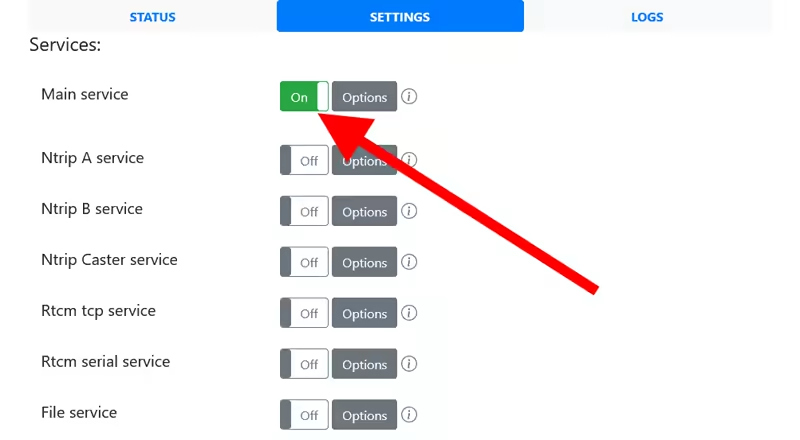
RTKBase has three tabs: STATUS, SETTINGS, and LOGS. Start by going to the SETTINGS tab and enable the "Main Service" if it is not already active.
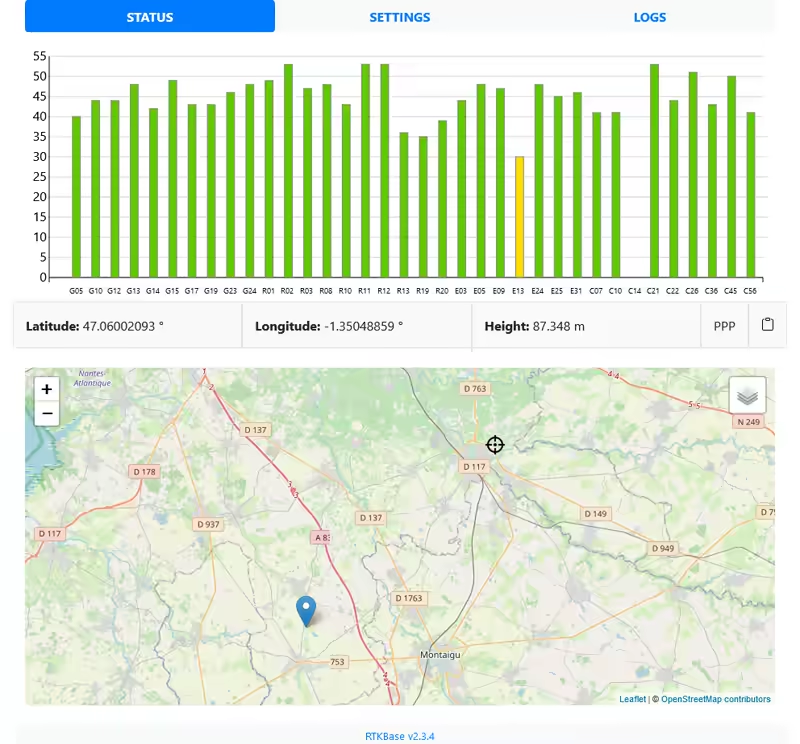
Next, go to the STATUS tab where you should see the satellite reception level. After a few seconds of calculations, the approximate position of the base will appear, represented by the blue marker on the map, as well as the stored coordinates of the base represented by the black target:
Everything looks good? If so, go back to the SETTINGS tab and click the Options button of the Ntrip A service. The important setting is the base name, which you enter in the "mount name" field. This name must:
- be chosen by you,
- be no longer than 4 uppercase characters,
- not already be used by another base,
- and avoid names of major cities (for example, LYON would be a bad idea).
The other Ntrip A service options should be:
- Caster address: default crtk.net
- Caster port: default 2101
- Caster password: The password for the Centipede-RTK caster is centipede (lowercase, without accents)
Click the Save button and you're done.
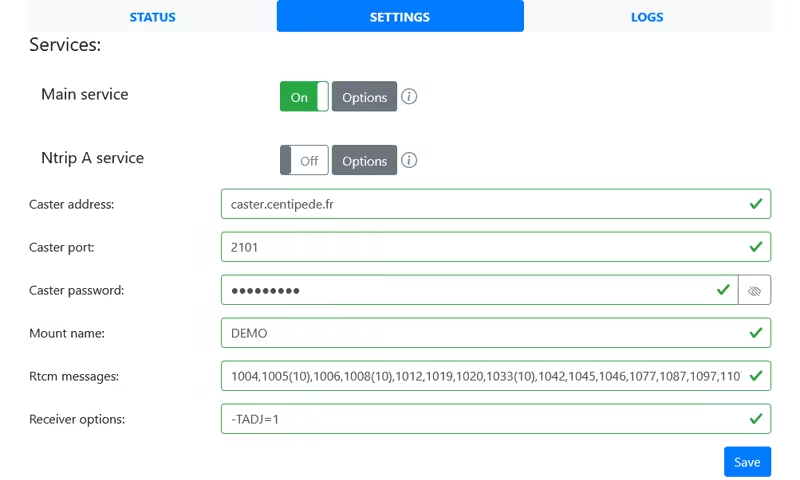
Do not enable the Ntrip service yet, otherwise you would start sending correction signals with incorrect coordinates.
However, you should enable the File Service:
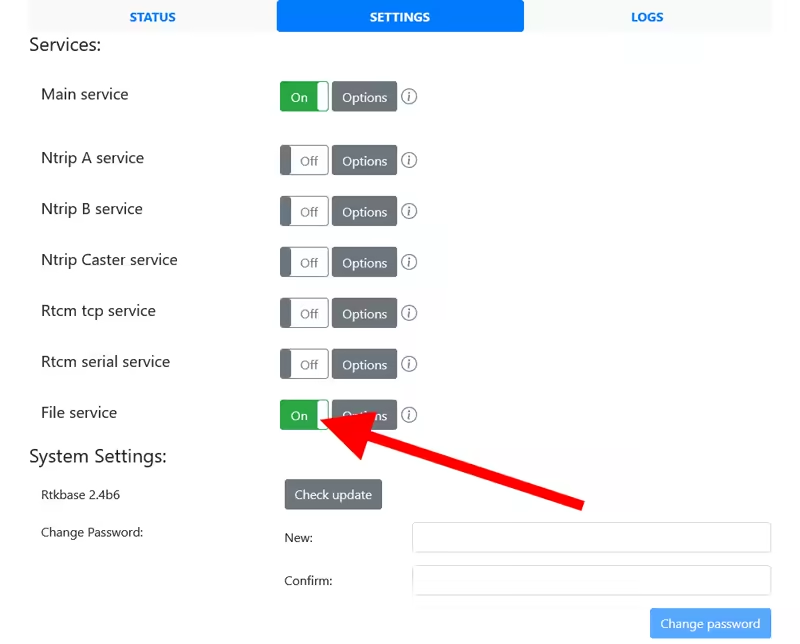
This service records the base signal and creates an archive every day at 04:00. To perform the precise calculation, we need an archive containing 24 hours of recording from 00:00 to 23:59. So if today is Tuesday, you will need to wait until Thursday morning.
Then proceed to the calculation of the base positioning