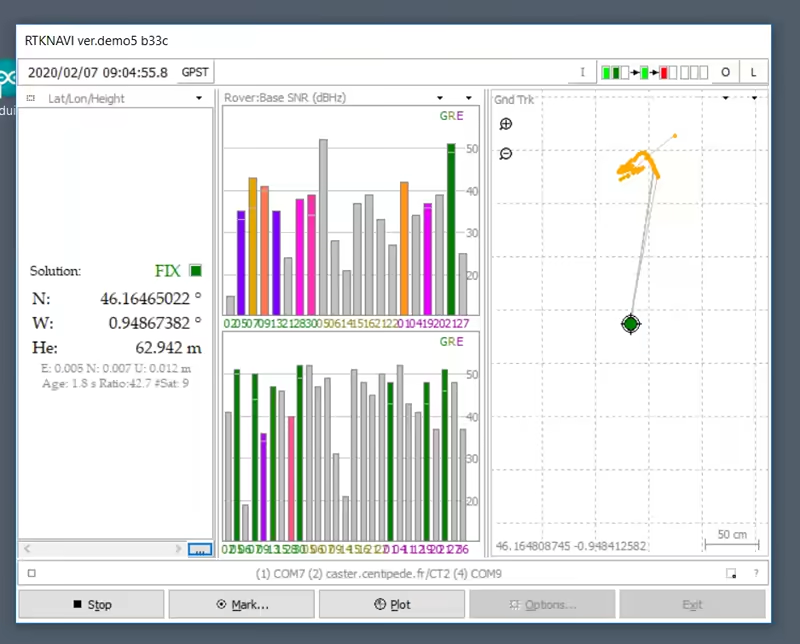
RTK rover with PC application (RTKLIB)
Prerequisites
Hardware
- A tablet or PC running Windows 10 or Linux
- A dual-frequency GNSS antenna
- An u-blox ZED-F9P-0xB receiver
Software
- The latest version of the software RTKLIB-ex > Position calculation in RTK using RTKLIB for centimeter-level geolocation.
Connection and configuration
Connecting the GNSS antenna
Connect the antenna + ZED-F9P receiver via USB.
Then open the Device Manager and check the COM port created under Windows or the mount point
/dev/ttyXXXfor Linux.
RTKLIB
RTKLIB converts the positioning signal from the GNSS antenna using an RTCM3 correction (Centipede-RTK Network for example) into a precise geolocation signal accurate to the centimeter level when conditions allow.
- Download the latest version of RTKLIB version Rtkexplorer demo5.
- Extract it into the folder of your choice.
- Open RTKNavi.
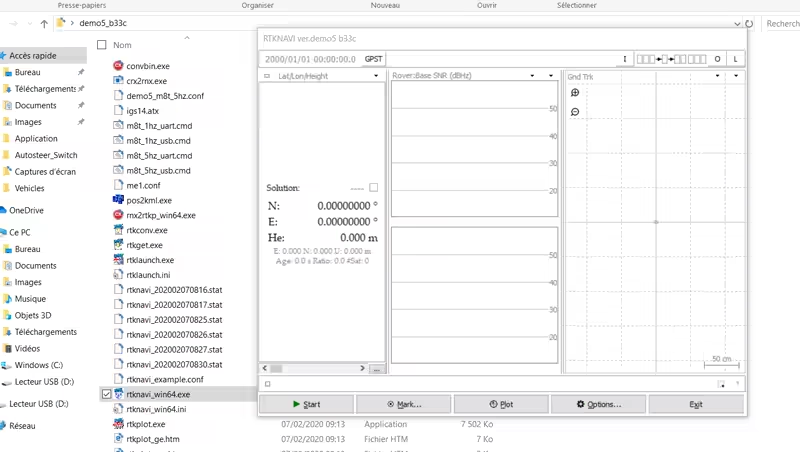
- Download this configuration file.
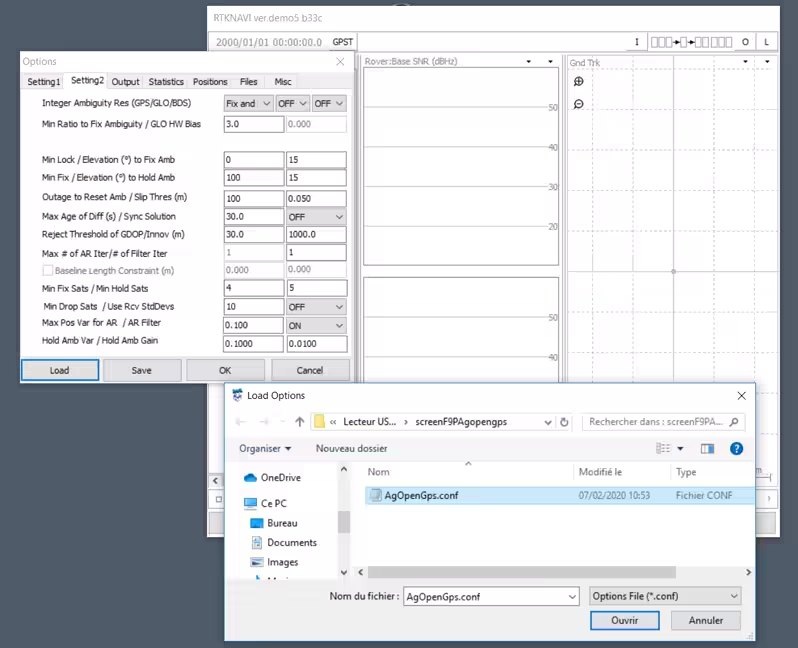
- Click option ...
- Click LOAD and select the previously downloaded file, then click OK.
This automatically configures several RTKLIB parameters.
- Click the I icon at the top right.
- Click ROVER > Opt.
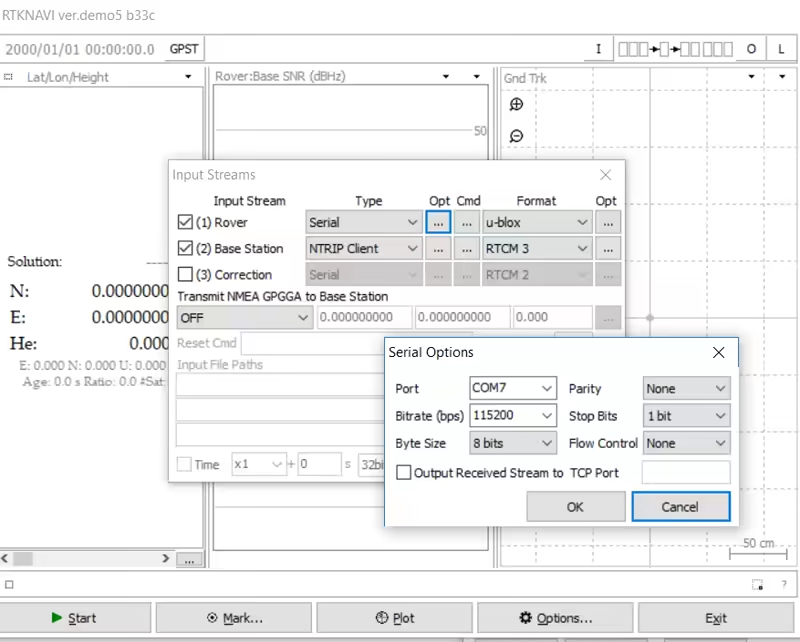
- Modify the COM7 port (USB input of the GNSS antenna) if needed according to your configuration.
- Download this configuration file.
- Click ROVER > Cmd.
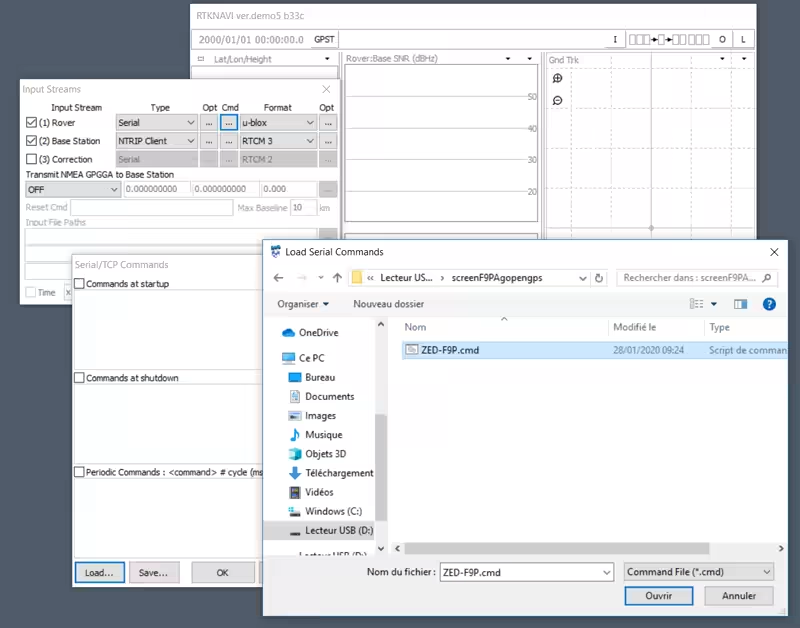
- Click LOAD and select the previously downloaded file.
- Check Commands at startup.
This loads parameters that are injected into the ZED-F9P module at each startup.
- Click Base Station > Opt.
- Change the Mountpoint to the nearest Centipede base station to your location.
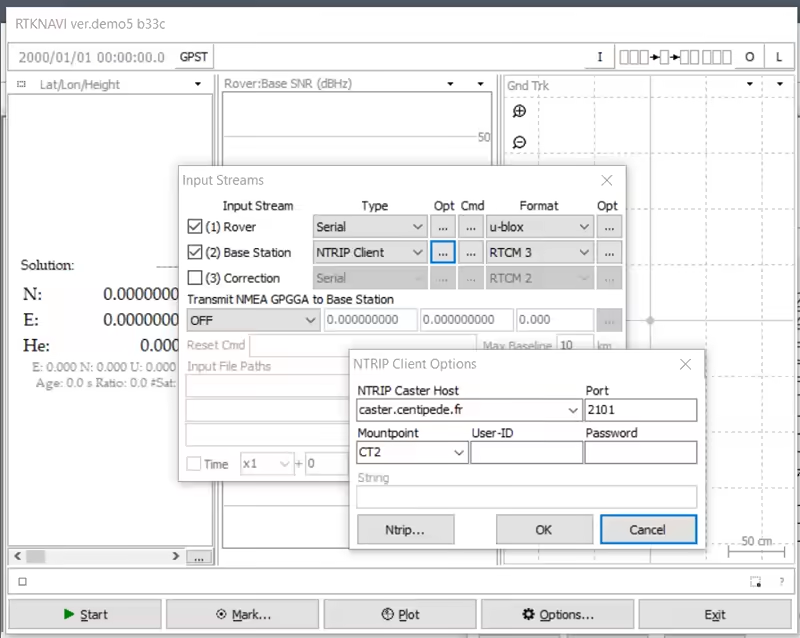
- Click the O icon at the top right.
- Click Solution > Option.
- Modify the COM9 port (RTKLIB NMEA output) if needed according to your configuration.
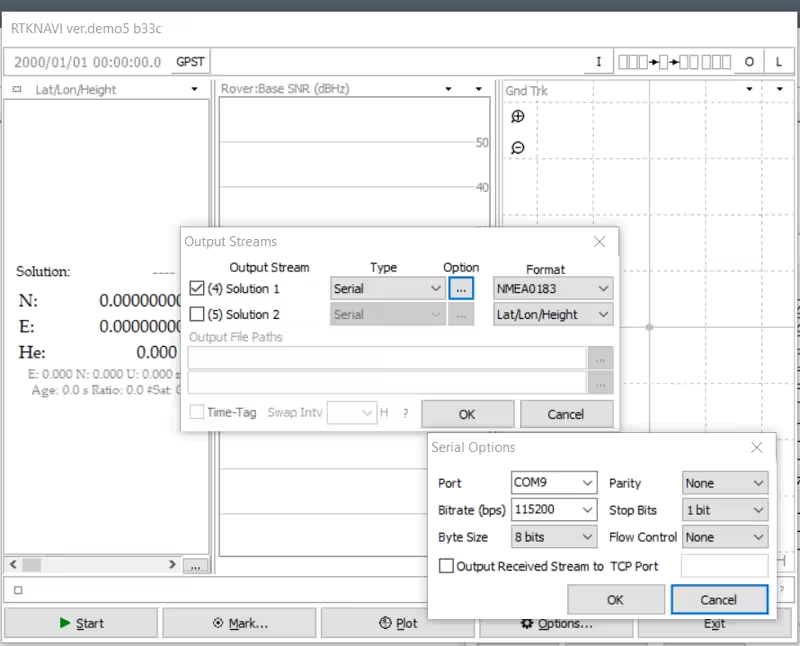
- Click EXIT and reopen RTKNavi to save the parameters.
First start
- Click Start and wait (from 30 seconds to several minutes) for a FIX RTK position.
The receiving antenna must of course be placed outdoors in an open environment.